User Guide
About GoonBook
GoonBook is a modern desktop application designed for educators to efficiently manage their students. It combines the speed and efficiency of a Command Line Interface (CLI) with an intuitive Graphical User Interface (GUI). Featuring robust student management capabilities including:
- Quick student information lookup and editing
- Smart grouping system for organizing students
- Tag-based organization for tracking student attributes
- Import/Export functionality for seamless data management
- Automatic data saving and backup
Perfect for educators who value efficiency and prefer keyboard-based interactions. With GoonBook, managing your student records becomes faster, simpler, and more organized than traditional GUI-only applications.
Table of Contents
- Getting Started
- Learning GoonBook
- Quick References
- Need Help
- Quick Start
- Layout
- Getting Help
- Managing Students
- Managing Groups
- Managing Tags
- Importing and Exporting Data
- Data Management
- Exiting the Program
- FAQ
- Known Issues
- Command Summary
- Acknowledgements
How to Use This Guide
Getting Started
If you haven’t installed GoonBook yet, start with the Quick Start section which will guide you through:
- Installing Java 17
- Downloading GoonBook
- Setting up your workspace
- Running your first command
Learning GoonBook
Once GoonBook is running, familiarize yourself with:
-
Basic Interface
- The command box for entering commands
- The student list panel
- The group management area
- The results display
-
Essential Features
Quick References
- For a complete list of commands, refer to the Command Summary
- Experienced users can use this as a quick refresher
- Each command includes examples of proper usage
Need Help?
- Check the FAQ section for common questions
- Review Known Issues if you encounter problems
- Refer to the Features section for detailed command usage
Quick start
-
Ensure you have Java
17or above installed in your Computer.- If you are on MacOS do note you may need to download a specific JDK 17 version. More on this here.
-
Download the latest
.jarfile from here. -
Copy the file to the folder you want to use as the home folder for your GoonBook.
-
Open a command terminal,
cdinto the folder you put the jar file in, and use thejava -jar goonbook.jarcommand to run the application.
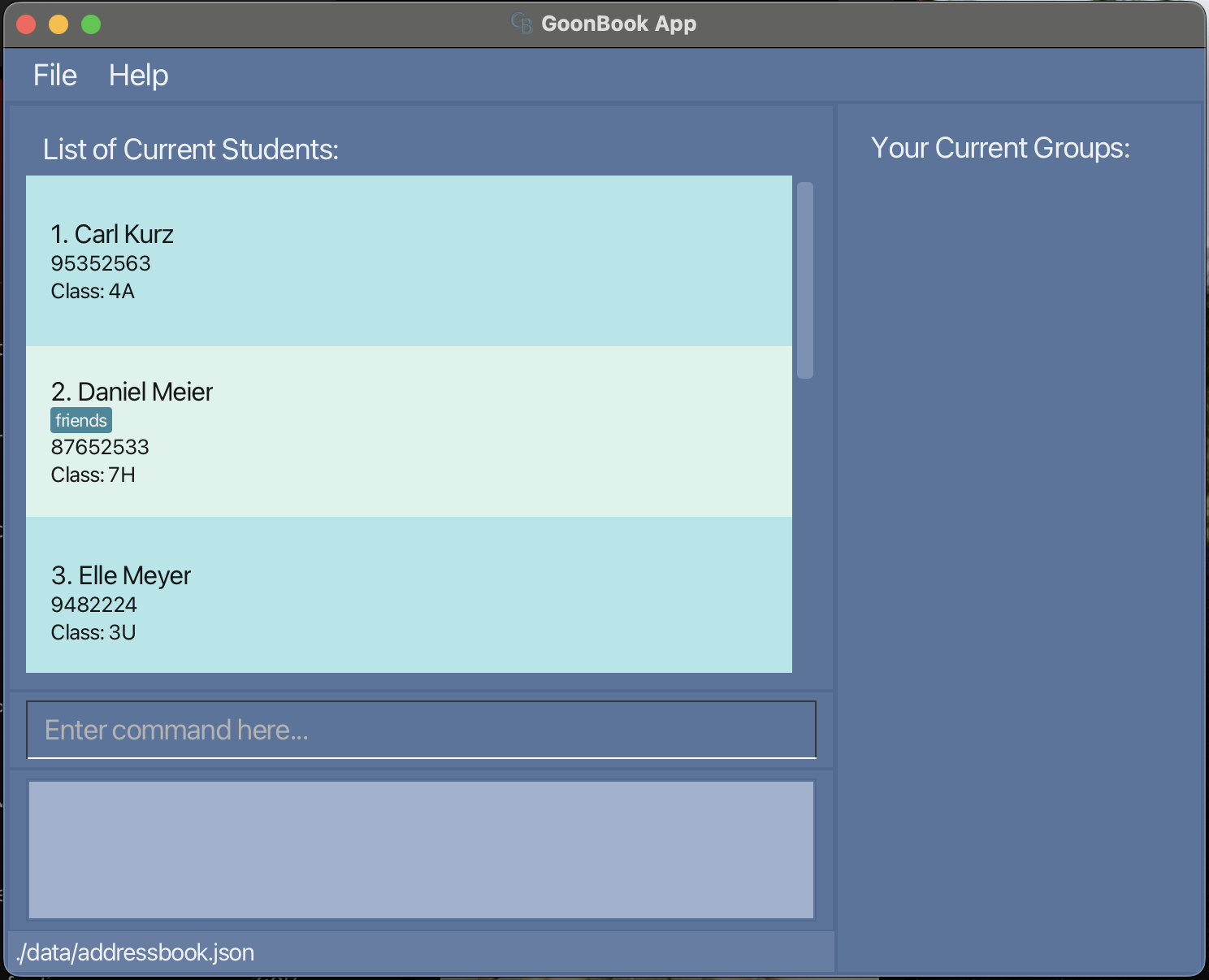
A GUI similar to the below should appear in a few seconds. Note how the app contains some sample data.
Examples:
- cd /users/desktop/goonbook/goonbook.jar
-
Type the command in the command box and press Enter to execute it. e.g. typing
helpand pressing Enter will open the help window.
Some example commands you can try:-
list: Lists all students. -
add n/Song Si Mew c/W08 p/10110011 t/Japanese: Adds a student namedSong Si Mewto the GoonBook. -
delete 1: Deletes the 1st student shown in the current list. -
clear: Deletes all students. -
exit: Exits the app.
-
-
Refer to the Features below for details of each command.
Layout
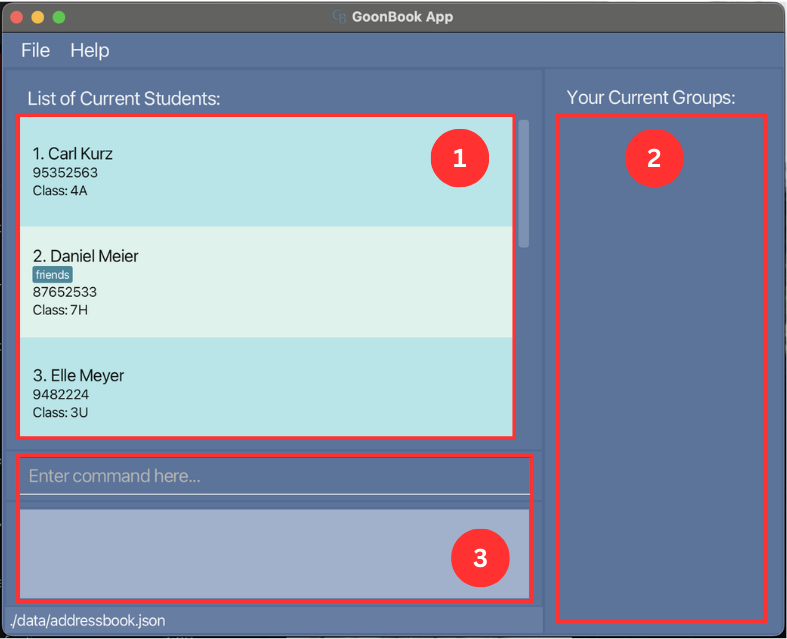
When you launch GoonBook, GoonBook appears on your screen as a Graphical User Interface, or GUI. Let’s look at the layout of the different components of GoonBook.
GoonBook’s GUI consists of a single main window, as well as the Help Window. The main window consists of three components:
- Student List Box
- Group List Box
- Command Input and Output Boxes
The following picture of the main window shows the three components, numbered accordingly:
Besides the main window, GoonBook also has the Help Window. It is not part of the main GUI and is only shown after a Help Command is run.
Features
 Notes about the command format:
-
Words in
UPPER_CASEare the parameters to be supplied by the user.
e.g. inadd n/NAME,NAMEis a parameter which can be used asadd n/John Doe. -
Items in square brackets are optional.
e.gn/NAME [t/TAG]can be used asn/John Doe t/friendor asn/John Doe. -
Items with
… after them can be used multiple times including zero times.
e.g.[t/TAG]…can be used ast/friend,t/friend t/familyetc. -
Parameters can be in any order.
e.g. if the command specifiesn/NAME p/PHONE_NUMBER,p/PHONE_NUMBER n/NAMEis also acceptable. -
Extraneous parameters for commands that do not take in parameters (such as
help,list,exitandclear) will be ignored.
e.g. if the command specifieshelp 123, it will be interpreted ashelp. -
If you are using a PDF version of this document, be careful when copying and pasting commands that span multiple lines as space characters surrounding line-breaks may be omitted when copied over to the application.
Getting Help
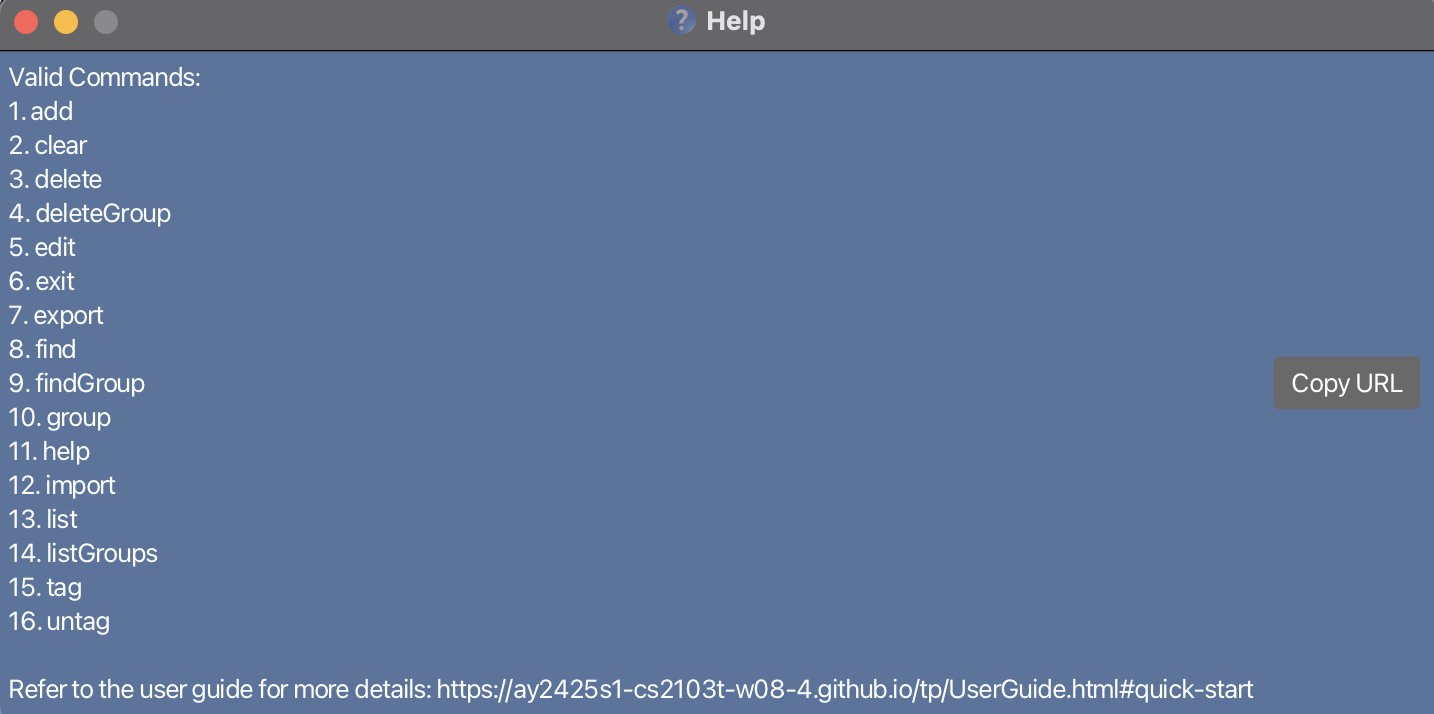
Viewing help : help
Shows a message explaining how to access the help page.
Format: help
Managing Students
Adding a student: add
Adds a student to the GoonBook.
Format: add n/NAME c/CLASS p/PHONE_NUMBER [t/TAG]…
- Students of same
NAMEis considered duplicate. -
NAMEis case-insensitive. It must be alphanumeric and allows whitespace. -
CLASSmust be alphanumeric. -
PHONE_NUMBERmust be at least 3 digits long and only contain numbers. -
PHONE_NUMBERhas support for+for the extension code. -
TAGmust be alphanumeric and allows whitespace. It must be within 30 characters.
 Tip:
A person can have any number of tags (including 0)
Tip:
A person can have any number of tags (including 0)
Examples:
-
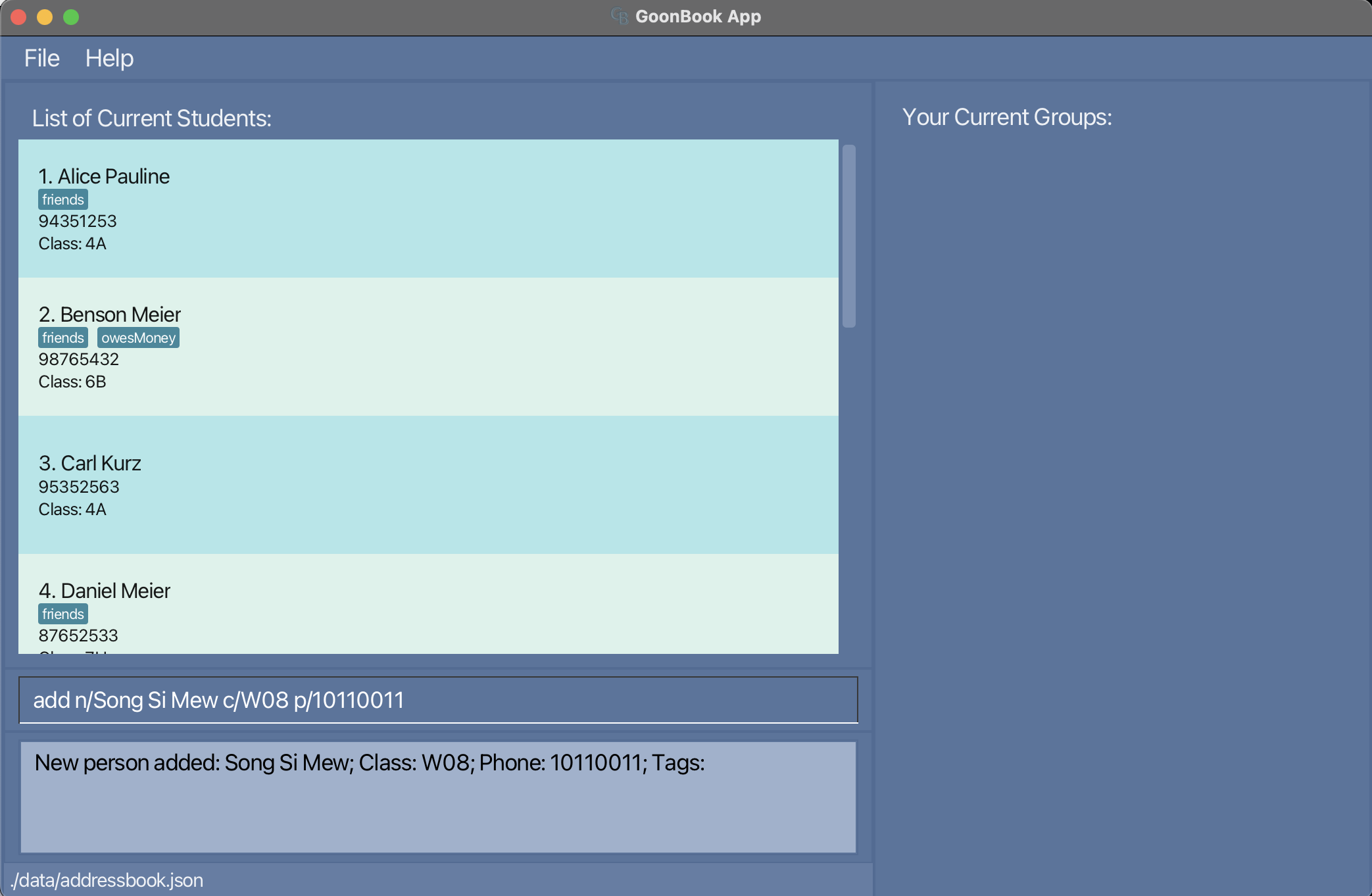
add n/Song Si Mew c/W08 p/10110011- Successfully adds new student
Song Si Mewfrom classW08and phone number10110011successfully.
- Successfully adds new student
-
add n/SONG SI MEW c/W08 p/10110011- Returns
This student already exists in the address book
- Returns
-
add n/Aaron Tan c/G12 p/11110011 t/Trivial t/CS- Successfully adds new student
Aaron Tanfrom classG12, phone number11110011, tagsTrivialandCSsuccessfully.
- Successfully adds new student
-
add n/Beh Wen Jie c/ p/- Returns
Student's class names cannot be empty and should be alphanumeric
- Returns
-
add n/Beh Wen Jie c/S09 p/###- Returns
Phone numbers should only contain numbers, and it should be at least 3 digits long
- Returns
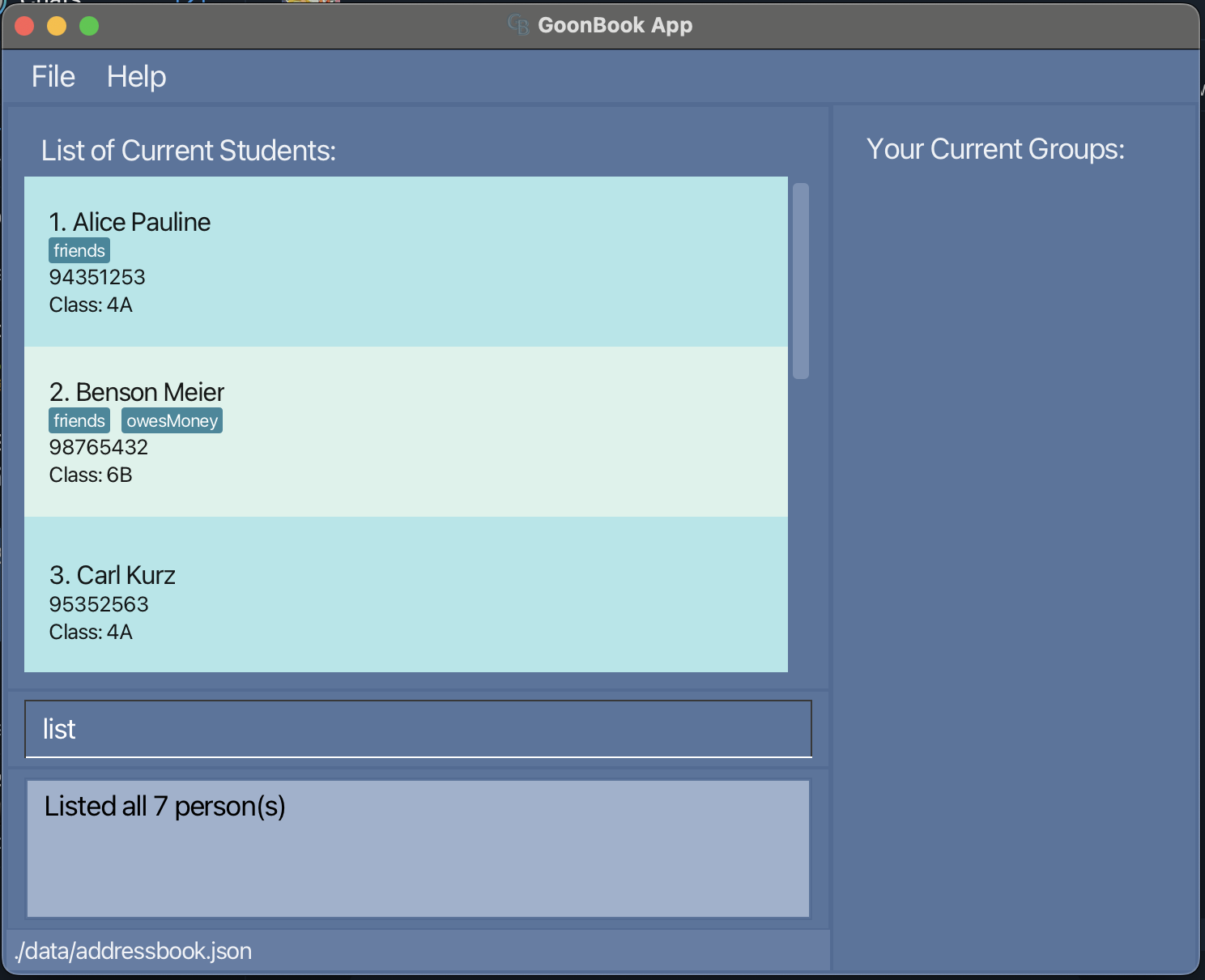
Listing all students : list
Shows a list of all students in the GoonBook.
Format: list
Editing a student : edit
Edits an existing student in the GoonBook.
Format: edit INDEX [n/NAME] [p/PHONE_NUMBER] [c/CLASS] [t/TAG]…
-
Edits the student at the specified
INDEX. The index refers to the index number shown in the displayed person list. The index must be a positive integer 1, 2, 3, … -
INDEXrefers to the index number shown in the displayed person list. -
NAMEis case-insensitive. It must be alphanumeric and allows whitespace. -
CLASSmust be alphanumeric. -
PHONE_NUMBERmust be at least 3 digits long and only contain numbers. -
PHONE_NUMBERhas support for+for the extension code. -
TAGmust be alphanumeric and allows whitespace. It must be within 30 characters. - At least one of the optional fields must be provided.
- Existing values will be updated to the input values.
- When editing tags, the existing tags of the student will be removed i.e adding of tags is not cumulative.
- You can remove all the student’s tags by typing
t/without specifying any tags after it. - You can add multiple
t/to add more than one tag.
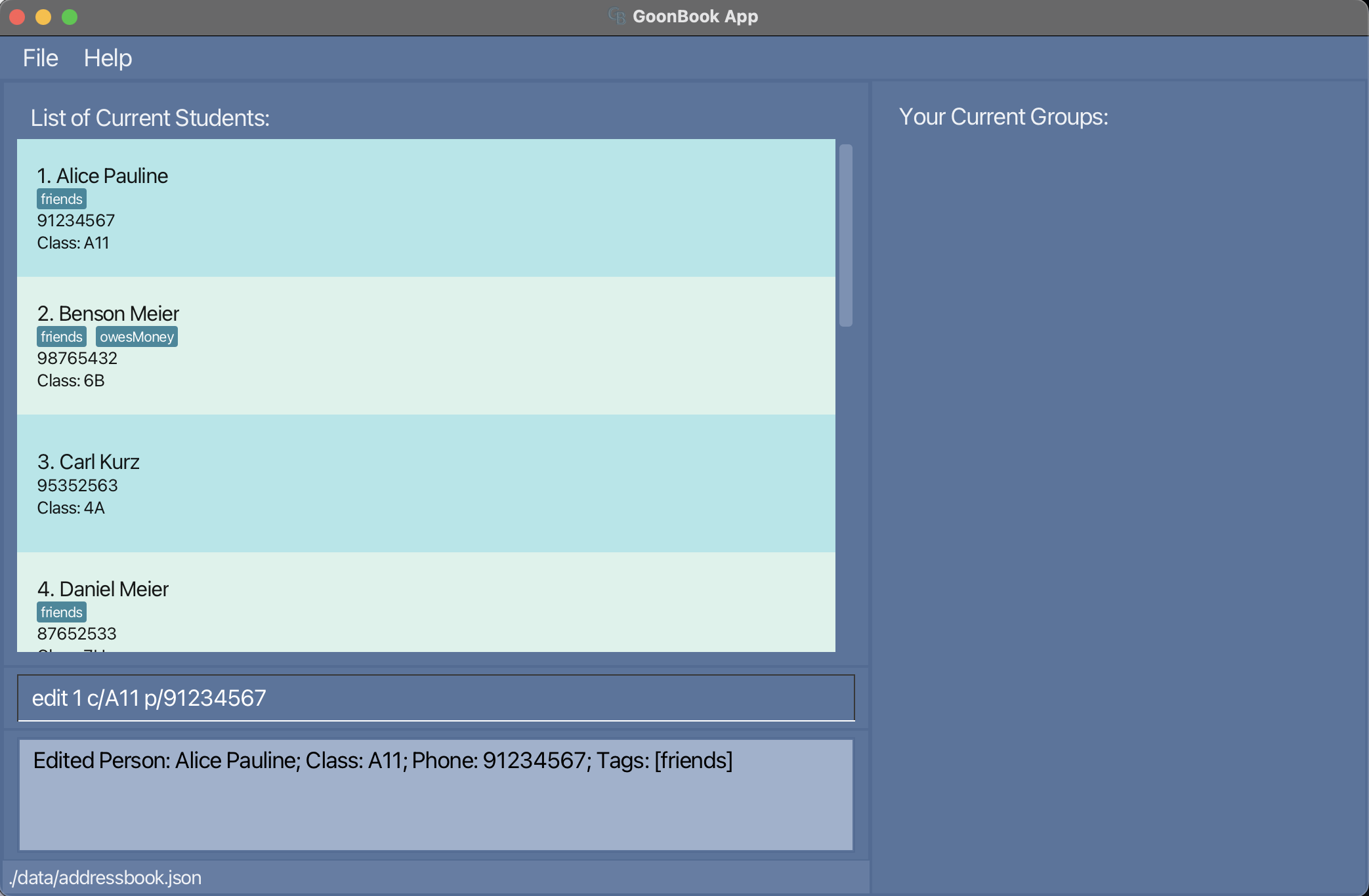
Examples:
-
edit 1 c/A11 p/91234567- Edits the class and phone number of the 1st student to be
A11and91234567respectively.
- Edits the class and phone number of the 1st student to be
-
edit 2- Returns
At least one field to edit must be provided.
- Returns
-
edit 1 c/W-08- Returns
Student's class names cannot be empty and should be alphanumeric
- Returns
Deleting a student : delete
Deletes the specified student from the GoonBook.
Format: delete INDEX
- Deletes the student at the specified
INDEX. -
INDEXrefers to the index number shown in the displayed person list. -
INDEXmust be a positive integer 1, 2, 3, …
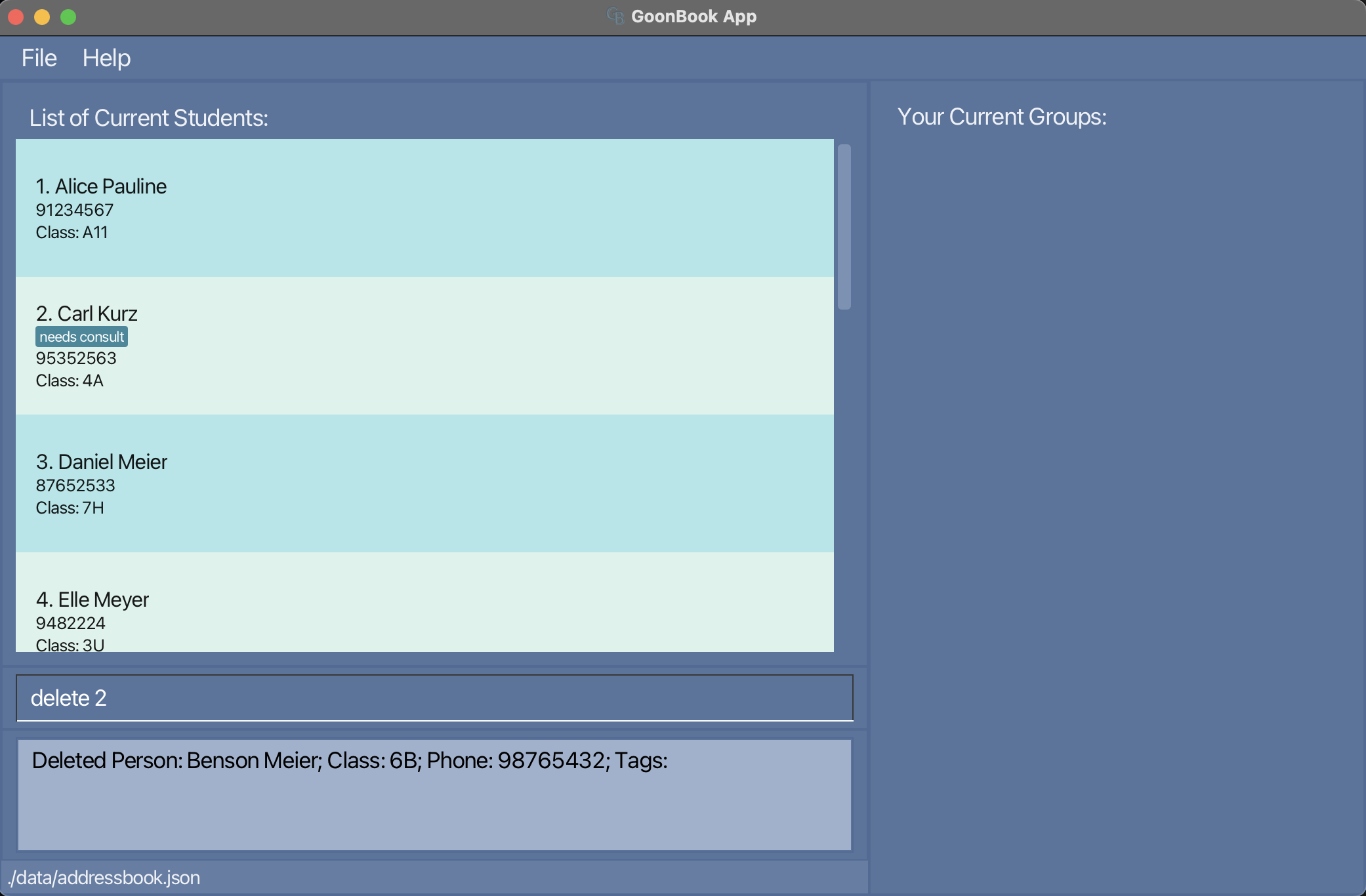
Examples:
-
listfollowed bydelete 2- Successfully deletes the 2nd person in the Goon book.
-
find Betsyfollowed bydelete 1- Successfully deletes the 1st person in the results of the
findcommand.
- Successfully deletes the 1st person in the results of the
-
delete 100- If contains fewer than 100 students, returns
The index provided is greater than the max students
- If contains fewer than 100 students, returns
Locating students by name: find
Finds students whose names contain any of the given keywords.
Format: find KEYWORD [MORE_KEYWORDS]
- The search is case-insensitive. e.g
hanswill matchHans - The order of the keywords does not matter. e.g.
Hans Bowill matchBo Hans - Only the name is searched.
- Only full words will be matched e.g.
Hanwill not matchHans - Students matching at least one keyword will be returned (i.e.
ORsearch). e.g.Hans Bowill returnHans Gruber,Bo Yang
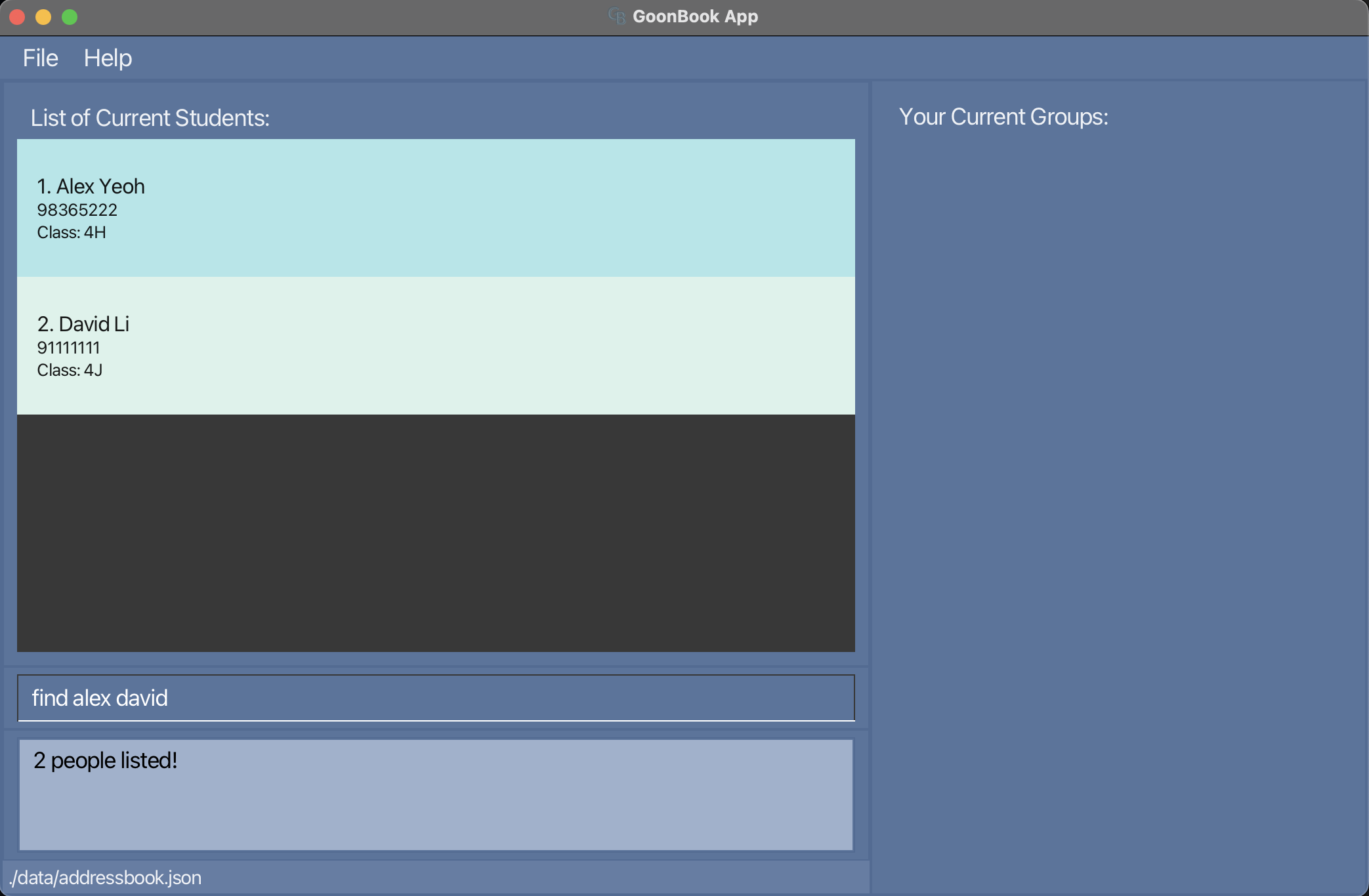
Examples:
-
find alex david- Returns
Alex Yeoh,David Li
- Returns
-
find alex dav- Returns
Alex Yeoh
- Returns
Tips for Effective Use
- Use the
listcommand to display all students again.
Managing groups
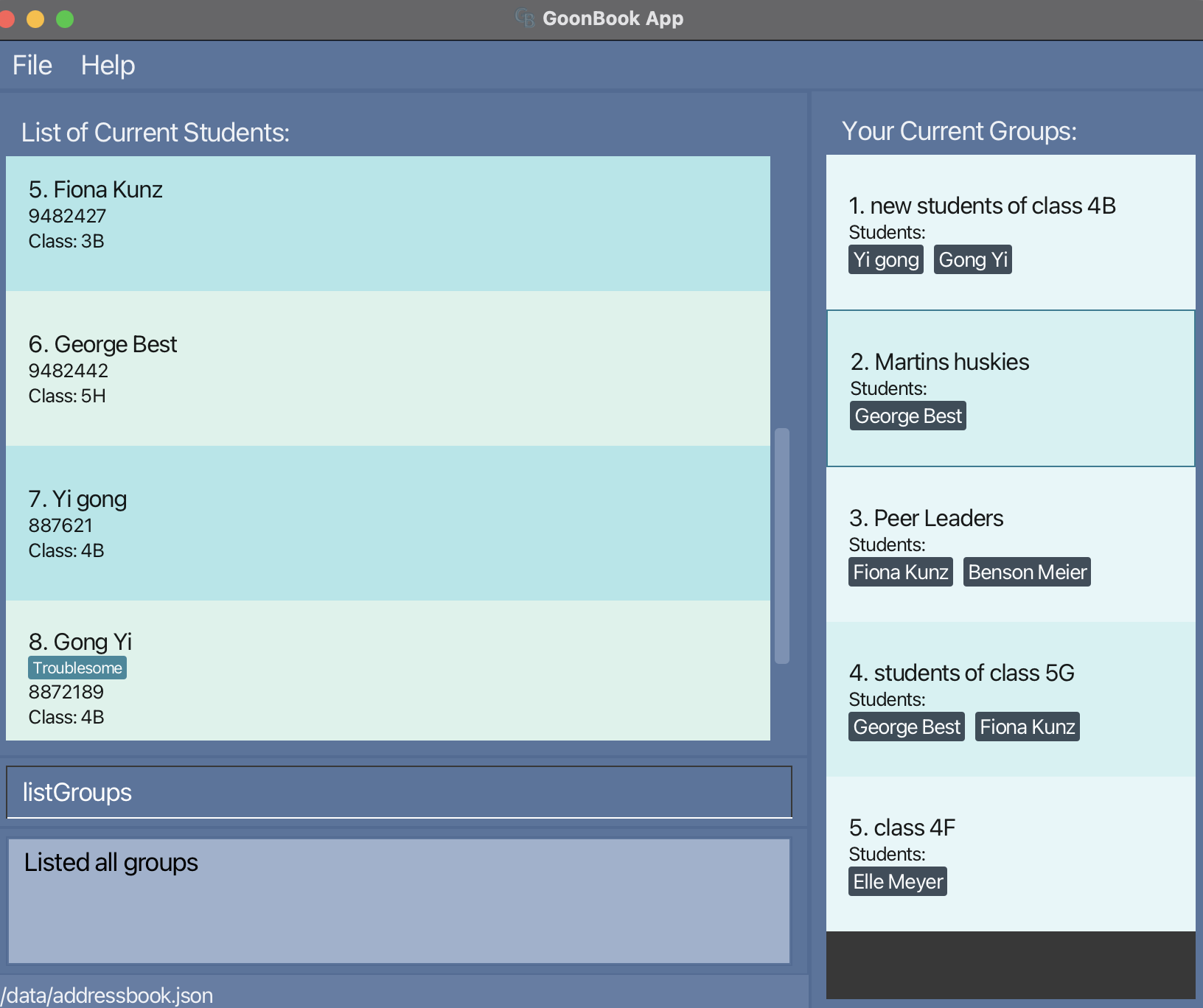
Listing all groups : listGroups
Shows a list of all groups in the Goon Book.
Format: listGroups
Grouping students together: group
Groups students together.
Format: group g/GROUPNAME s/STUDENTNAME [s/STUDENTNAME]…
- Each group must have a unique name.
-
GROUPNAMEmust be alphanumeric and allows whitespace (case-insensitive). -
STUDENTNAMEmust match exactly (case-sensitive). - Group is successfully created only if all student names match.
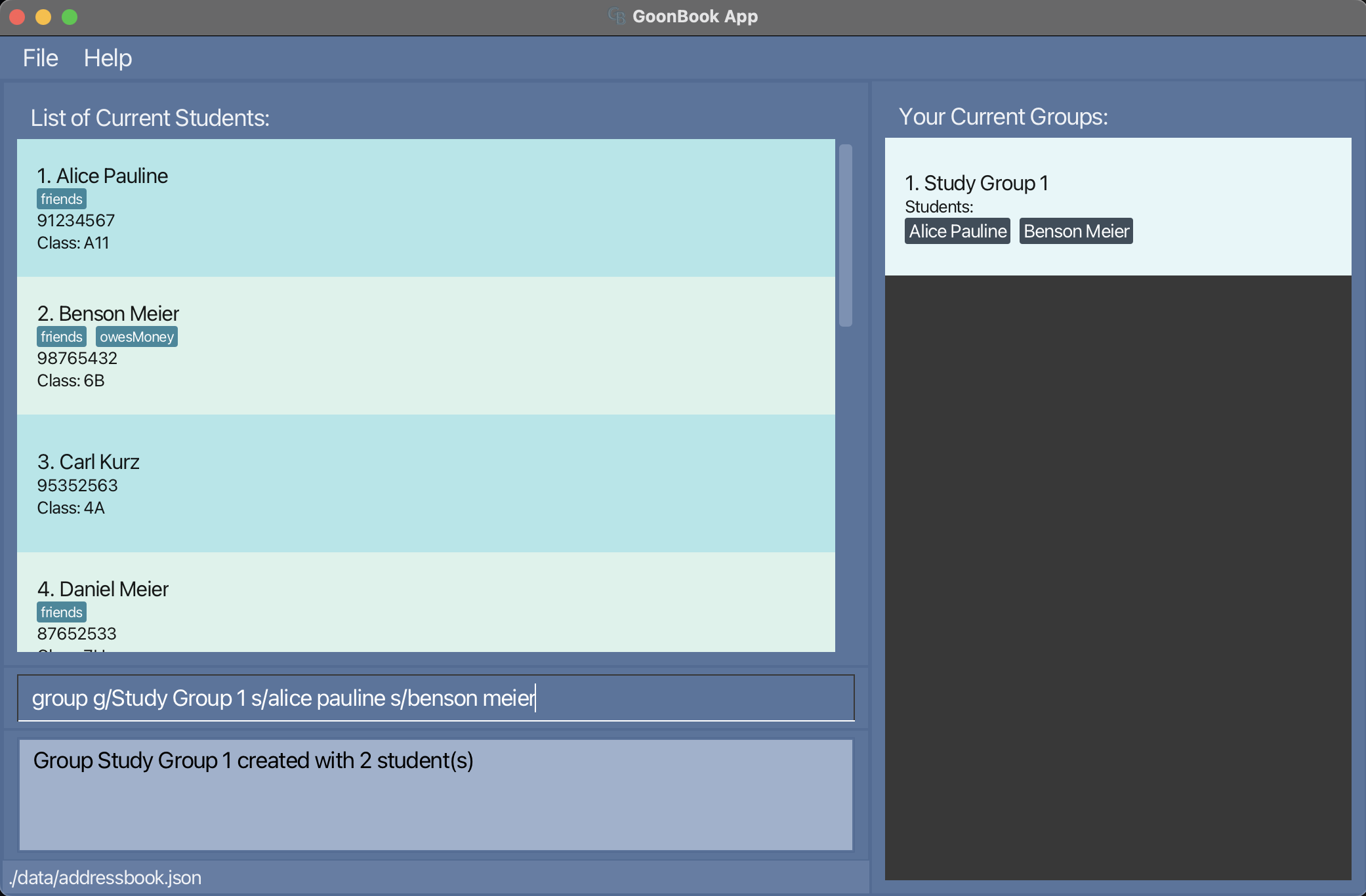
Examples:
If the group contains Alice Pauline and Benson Meier,
-
group g/Study Group 1 s/alice pauline s/benson meier- Successfully groups
Alice PaulineandBenson MeierintoStudyGroup1.
- Successfully groups
-
group g/STUDY GROUP 1 s/alice pauline s/benson meier- Returns
Group name already taken!!
- Returns
-
group g/Study Group 2 s/ali- Returns
The following students could not be found: ali
- Returns
Note: The group command requires exact, case-sensitive matches for student names. Double-check the names before executing the command to ensure the group is created successfully.
Locating groups by name: findGroup
Finds existing group(s) whose name contains the given keyword.
Format: findGroup KEYWORD
- The search is case-insensitive. e.g
classwill matchClass - Only the group name is searched.
- findGroup is a partial name serach where if group names contain the keyword they will be matched e.g.
findGroup clawill matchclass 9A - Groups containing the keyword will be returned.
e.g.
findGroup swill returnshaun's study grouporhouse groupbut notRunning Group
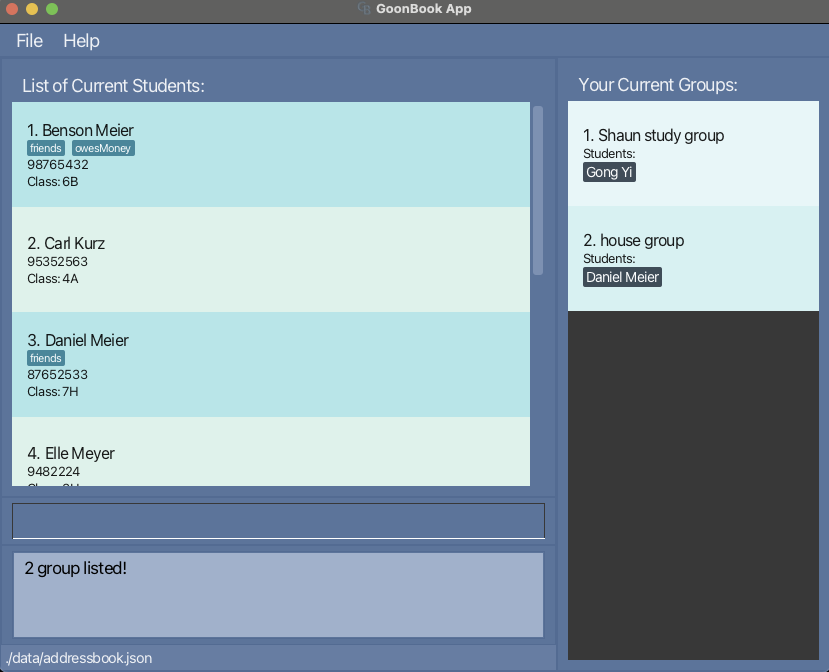
Examples:
-
findGroup study group- Returns
study group 1andstudy group 2
- Returns
-
findGroup study group 1- Returns
study group 1
- Returns
Tips for Effective Use
- Use the
listGroupscommand to display all groups again.
Deleting a group : deleteGroup
Deletes the specified Group from the GoonBook.
Format: deleteGroup GROUPNAME
- Deletes the group given the specific
GROUPNAME. - The group name refers to the name shown in the group list.
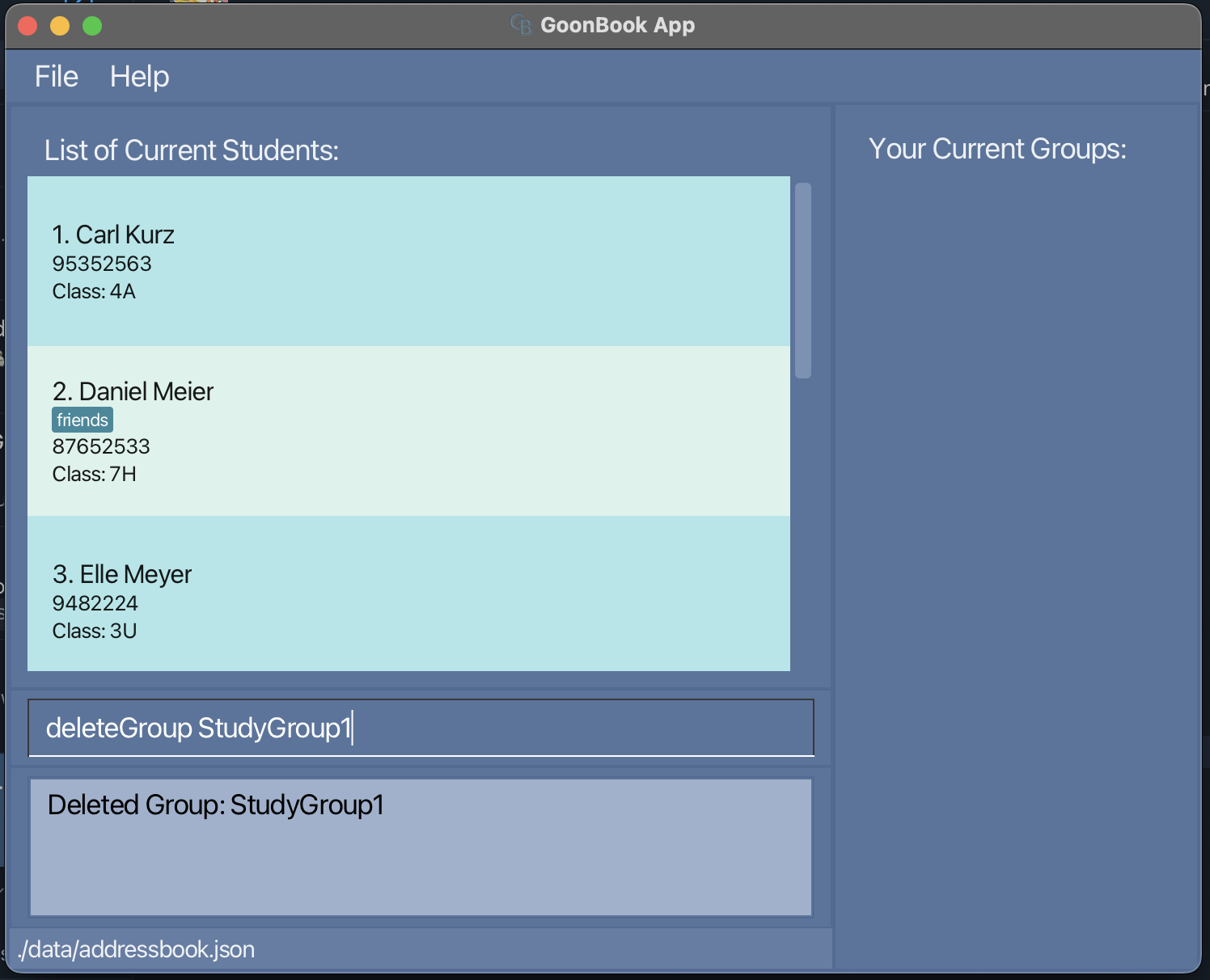 Examples:
-
groupsfollowed bydeleteGroup StudyGroup1deletes StudyGroup1
Warning: Deleting a group using deleteGroup will permanently remove the group. The students in the group will not be deleted.
Managing Tags
Adding a tag : tag
Adds a tag to a specified student.
Format: tag INDEX t/TAG [t/TAG]…
- Ability to add more than one tag at once by doing another
t/TAGafter. -
INDEXmust be a positive integer 1, 2, 3, … -
INDEXrefers to the index number shown in the displayed person list. -
TAGmust be alphanumeric and allows whitespace. It must be within 30 characters. -
TAGwill be converted to all lowercase characters.
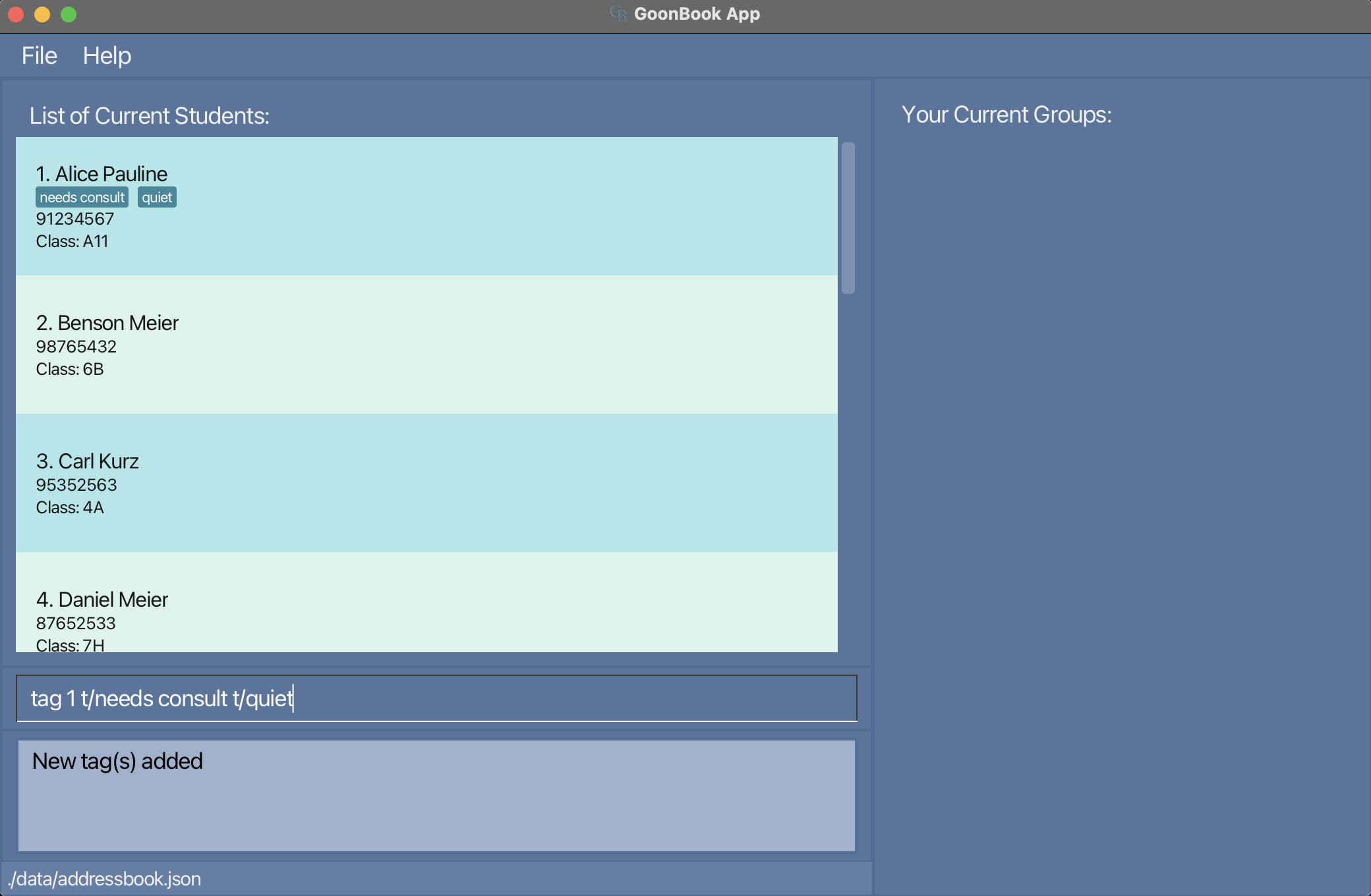
Examples:
-
tag 1 t/needs consult t/quiet- Successfully tags 1st student to
needs consulttag andquiettag
- Successfully tags 1st student to
-
tag 1 t/QUIET- Returns
Tag(s) already exist
- Returns
-
tag 100 t/hardworking- If contains fewer than 100 students, returns
The person index provided is invalid
- If contains fewer than 100 students, returns
Deleting a tag : untag
Deletes a tag of a specified student.
Format: untag INDEX t/TAG [t/TAG]…
-
INDEXmust be a positive integer 1, 2, 3, … -
INDEXrefers to the index number shown in the displayed person list. -
TAGletters must match exactly (case-insensitive)
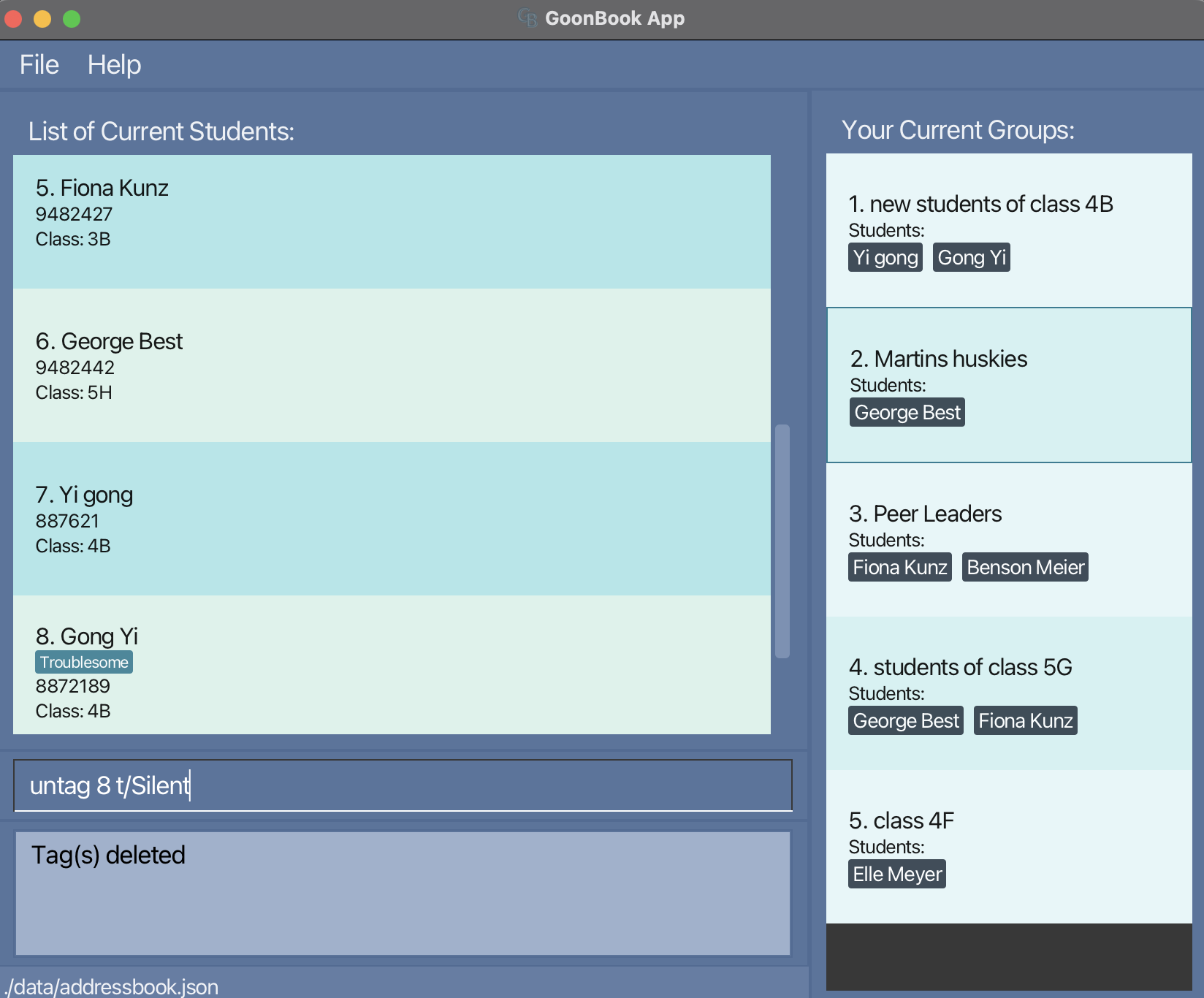
Examples:
-
untag 8 t/Silent- Successfully removes
silenttag from 8th student
- Successfully removes
-
untag 1 t/needs consult t/quiet- Successfully removes
needs consulttag andquiettag from 1st student
- Successfully removes
-
untag 1 t/qquiet- Returns
The tag(s) does not exist
- Returns
Importing and Exporting Data
Import students: import
Imports and adds new NON-DUPLICATE students from a .csv file into GoonBook.
Format: import CSV_FILE_LOCATION
- Only adds NON-DUPLICATE students (i.e. students with same name).
- Does not update existing users with the new imported data.
- Will notify user of all duplicate students found and not imported.
-
CSV_FILE_LOCATIONmust be absolute path and valid. - Csv files must be properly formatted to GoonBook style (see exported_data.csv).
- Csv files are to have 4 columns:
[name, class, phone number, tags]. - Tags in the csv file are to be seperated with a space.
- Will show user data corrupted error if parse or data is not formatted right.
- Will show user cannot find error if no or invalid file location is given.
- Will show user invalid file format, must be .csv if a valid file which is not a .csv is entered.
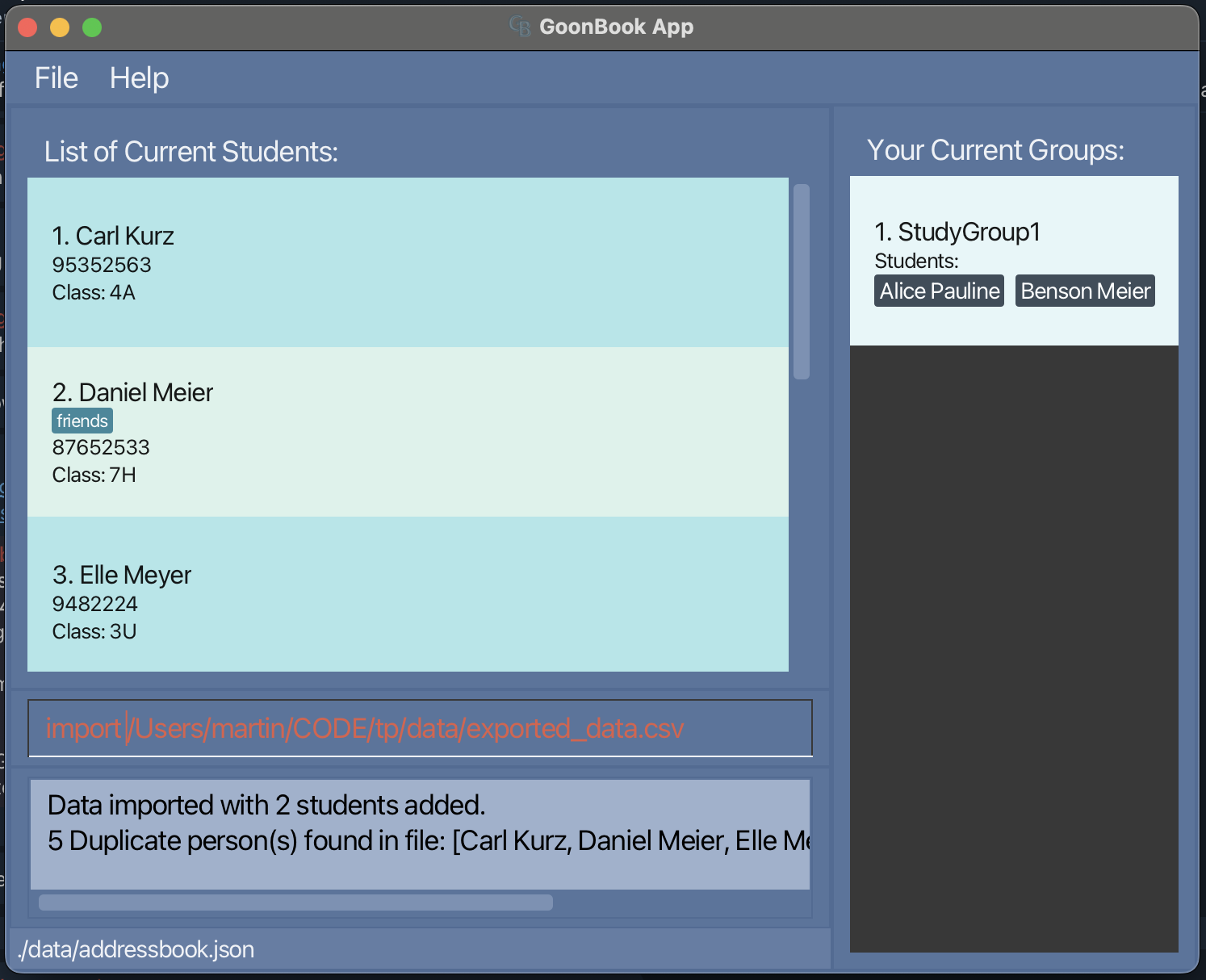
Examples:
-
import /Users/martin/CODE/tp/data/exported_data.csv- Successfully imports data
-
import /invalid/path- Returns
Invalid path!
- Returns
Warning: When importing students with the import command, ensure that the CSV file is correctly formatted and contains valid data. Improper formatting may cause the import to fail or lead to data corruption.
Export students: export
Exports all students in GoonBook to a .csv file.
Format: export
- Exports all students to fixed location as exported_data.csv
- Location can be found at
[JAR FILE LOCATION]/data/exported_data.csv
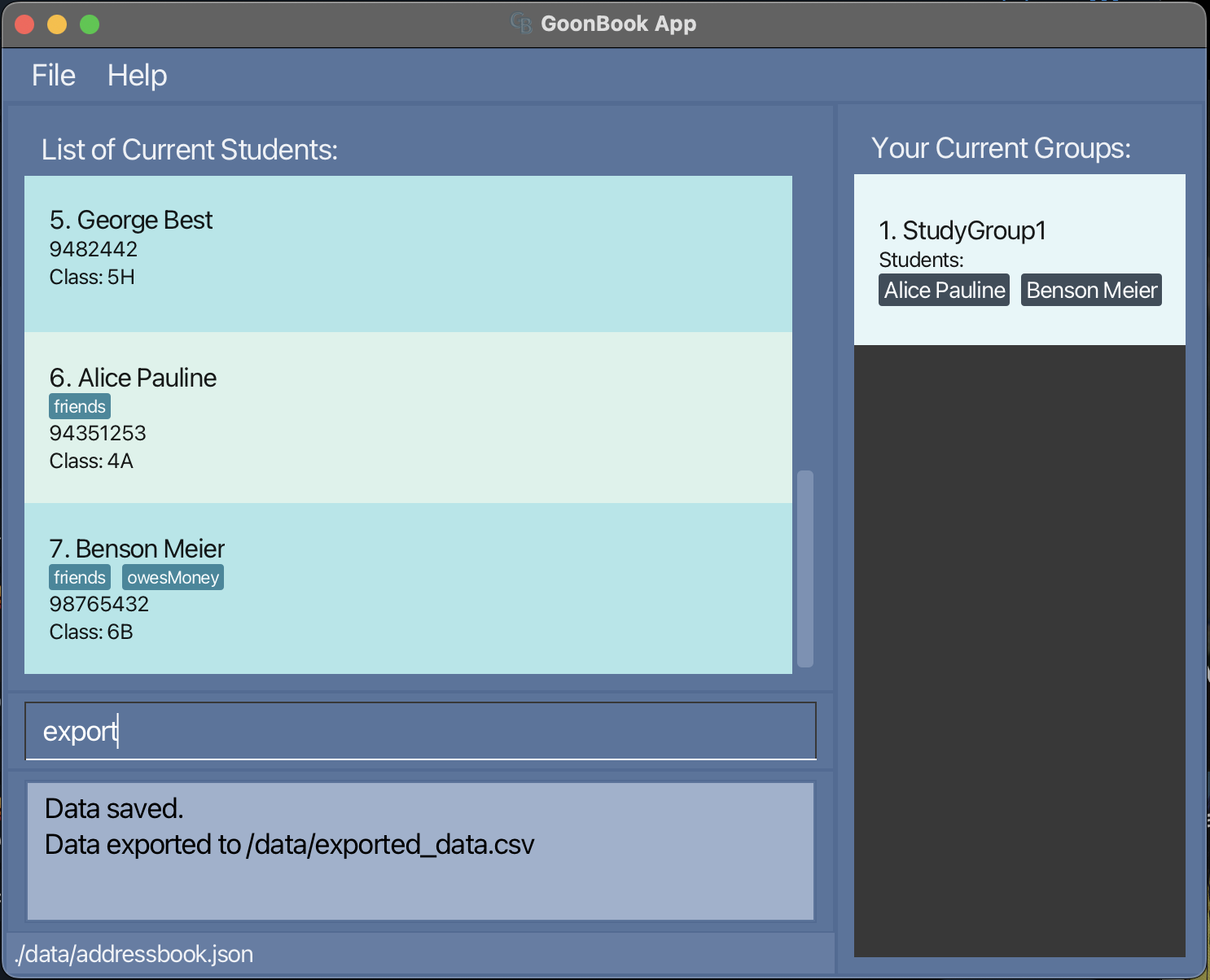
Exported csv data file location
GoonBook csv data files are saved automatically as a .csv file at [JAR file location/data/exported_data.csv].
Data Management
Clearing all entries : clear
Clears all entries from the GoonBook.
Format: clear
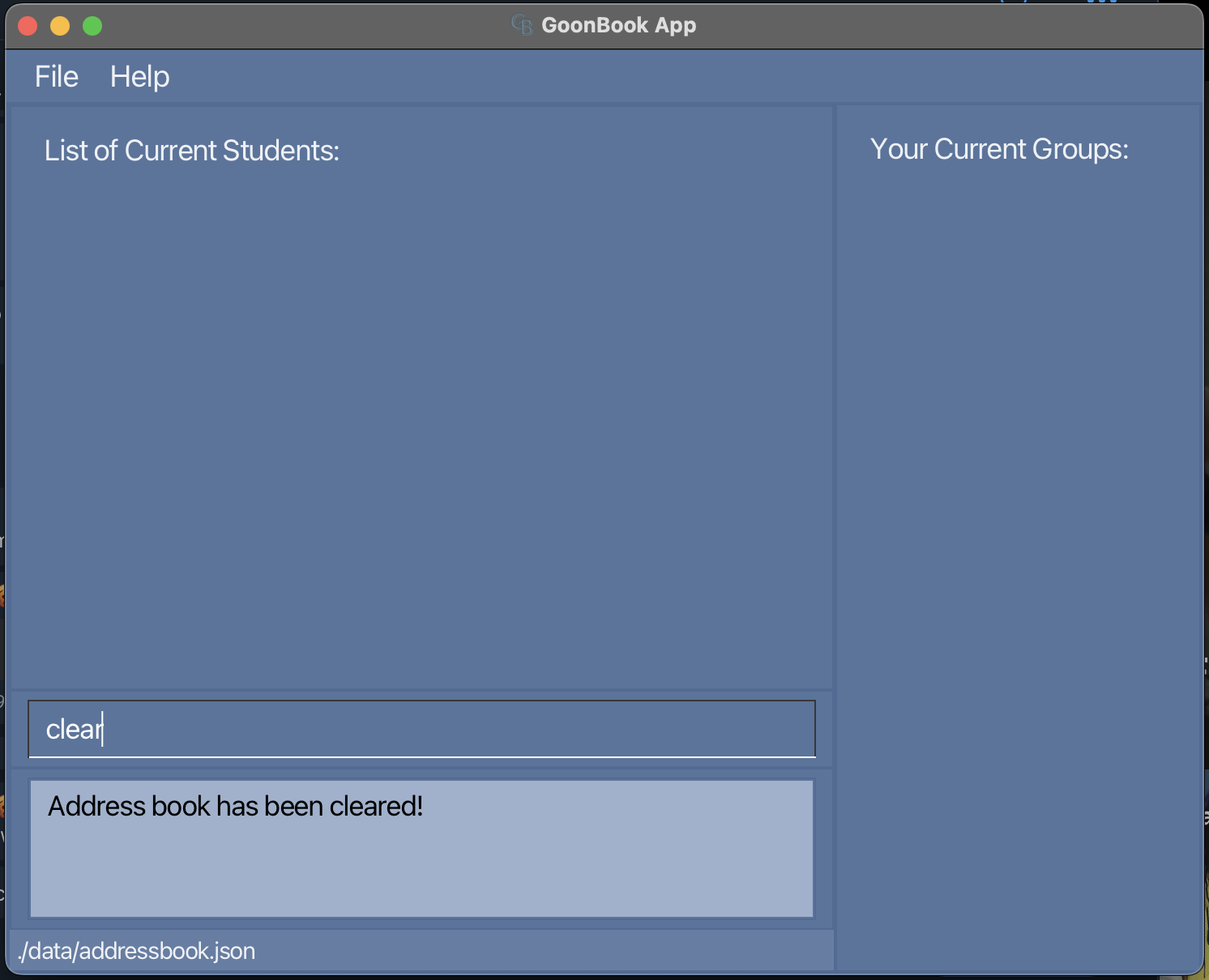
Warning: The clear command has no confirmation prompt and will delete all data immediately. Use with caution.
Exiting the Program
Exiting the program : exit
Exits the program.
Format: exit
Note: Always exit the application using the exit command to ensure all data is saved properly.
Saving the data
GoonBook data are saved in the hard disk automatically after any command that changes the data. There is no need to save manually.
Editing the data file
GoonBook data are saved automatically as a JSON file [JAR file location]/data/addressbook.json. Advanced users are welcome to update data directly by editing that data file.
Warning: Manually editing the data file may lead to data loss if the JSON format is not strictly followed. Always back up your data before making direct edits.
 Caution:
If your changes to the data file makes its format invalid, GoonBook will discard all data and start with an empty data file at the next run. Hence, it is recommended to take a backup of the file before editing it.
Caution:
If your changes to the data file makes its format invalid, GoonBook will discard all data and start with an empty data file at the next run. Hence, it is recommended to take a backup of the file before editing it.Furthermore, certain edits can cause the GoonBook to behave in unexpected ways (e.g., if a value entered is outside of the acceptable range). Therefore, edit the data file only if you are confident that you can update it correctly.
Archiving data files [coming in v2.0]
- Import and Export feature to include Group support.
FAQ
Q: How do I transfer my data to another Computer?
A: Install the app in the other computer and overwrite the empty data file it creates with the file that contains the data of your previous GoonBook home folder.
Q: Is there support for importing and exporting groups?
A: It is a planned enhacement. Do check out our Developer Guide for more information.
Q: I don’t understand what caused the error in my command what can I do?
A: Take note of the command you tried using and look at the command format and examples in the user guide.
Known issues
-
When using multiple screens, if you move the application to a secondary screen, and later switch to using only the primary screen, the GUI will open off-screen. The remedy is to delete the
preferences.jsonfile created by the application before running the application again. -
If you minimize the Help Window and then run the
helpcommand (or use theHelpmenu, or the keyboard shortcutF1) again, the original Help Window will remain minimized, and no new Help Window will appear. The remedy is to manually restore the minimized Help Window. - If you require use of special characters, unfortunately we currently support alphanumeric representations hence, special characters cannot be used in our application. However we will be adding support for this in future implementations as we understand some students or classes may require use of special characters.
- If you are trying to identify a specific student using find but cannot explicity just return that single student due to them having a space in their name, we understand this can be a problem. Our team will be adding support for more specific searches to more accurately and preciesly locate students.
- Index isn’t referencing the correct number, index for our commands reference the currently displayed list of students and not the entire student list. Thus, it will be the index or number you see on you screen.
Before submitting issues
Do read up on our known issues and planned enhacements to see if we have already planned and covered potentially submitted issues!
Command summary
| Action | Format, Examples |
|---|---|
| Add |
add n/NAME c/CLASS p/PHONE_NUMBER [t/TAG]… e.g., add n/James Ho p/22224444 c/4B t/friend t/colleague
|
| Clear | clear |
| Delete |
delete INDEXe.g., delete 3
|
| Delete Group |
deleteGroup g/GROUP_NAME e.g., deleteGroup g/studygroup1
|
| Edit |
edit INDEX [n/NAME] [p/PHONE_NUMBER] [c/CLASS] [t/TAG]…e.g., edit 2 n/James Lee c/4L
|
| Export Students | export |
| Find |
find KEYWORD [MORE_KEYWORDS]e.g., find James Jake
|
| Find Group |
findGroup g/GROUP_NAME e.g., findGroup g/studygroup1
|
| Delete Group |
deleteGroup g/GROUP_NAME e.g., deleteGroup g/studygroup1
|
| Create Group |
group g/GROUP_NAME s/STUDENT_NAME [s/STUDENT_NAME]… e.g., group g/studygroup1 s/Annie s/Martin s/Jianbing s/Shaun s/Wenjie
|
| Import |
import FILELOCATION e.g., import /users/shaun/desktop/tp/test.csv
|
| List Students | list |
| List Groups | listGroups |
| Tag |
tag INDEX t/TAG [t/TAG]… e.g., tag 2 t/HighAchiever t/SecondTag
|
| Untag |
untag INDEX t/TAG [t/TAG]… e.g., tag 2 t/HighAchiever t/SecondTag
|
| Help | help |
Glossary
| Term | Definition |
|---|---|
| CLASS (placeholder) | The field for users to input student classes |
| CLI | Command Line Interface, where you enter commands |
| INDEX (placeholder) | Refers to the index number shown in the displayed person list |
| KEYWORD (placeholder) | The text we use search for a group or student |
| NAME (placeholder) | The field for users to input student’s names |
| PHONE_NUMBER (placeholder) | The field for users to input student’s phone numbers |
| TAG (placeholder) | The field for users to input student tags |
Acknowledgements
GoonBook is a brownfield software project based off AddressBook Level-3 (UG, DG), taken under the CS2103T Software Engineering module held by the School of Computing at the National University of Singapore.
Java dependencies:
- JavaFX for GUI
- JUnit5 for testing
Documentation dependencies:
- Jekyll for rendering the website
- PlantUML for creating UML diagrams